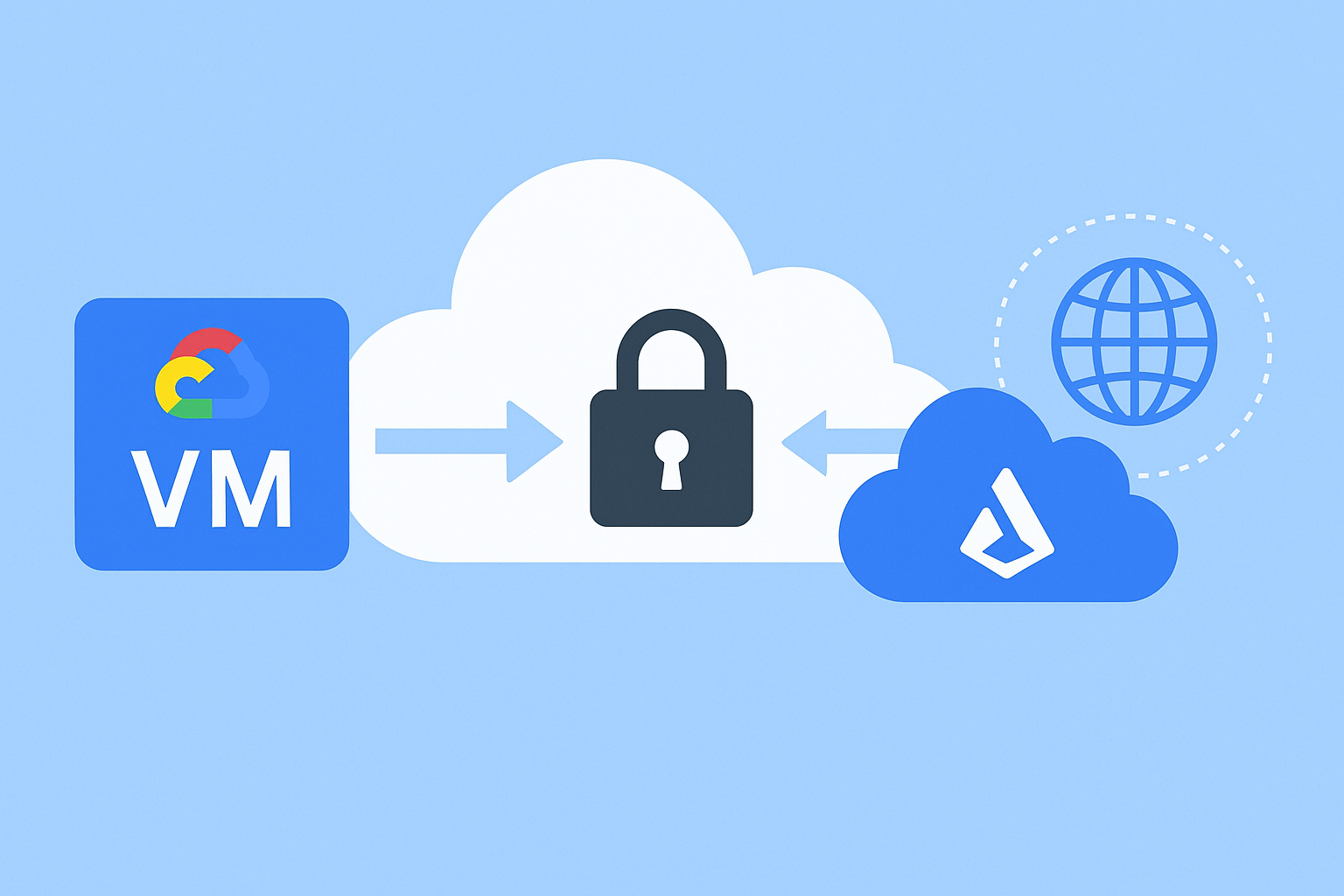
Securely Exposing a Google VM to Cloud Run Without Public Internet
In this article, we configure your Google VM to be securely exposed within Google Cloud, allowing Cloud Run to access it without traversing the public internet.
Prerequisites
- VM should be in the same VPC network as Cloud Run (e.g.,
default) - VM must be running a service (like Ollama) listening on a known port (e.g.,
11434) - In this example, we’re using:
- VM:
instance-ollama-llama3 - Zone:
asia-southeast2-b - Port:
11434
- VM:
Step 1: Create a Serverless VPC Access Connector
This lets Cloud Run reach internal IPs (like your VM).
gcloud compute networks vpc-access connectors create cloudrun-connector \
  --region=asia-southeast2 \
  --network=default \
  --range=10.8.0.0/28
ℹ️ About --range=10.8.0.0/28
This range is a dedicated IP block used by the VPC connector. It must:
Be a private subnet (RFC1918: e.g., 10.x.x.x, 192.168.x.x, 172.16.x.x)
Not overlap with your existing VPC subnets or other VPC connector ranges
Typically use a small block, such as /28 (16 IPs)
You can list your current subnet ranges with:
gcloud compute networks subnets list \
  --filter="network:default" \
  --format="table(name,region,ipCidrRange)"
Choose any safe, unused block like 10.9.0.0/28 or 192.168.100.0/28 if 10.8.0.0/28 conflicts.
Update your Cloud Run service to use the connector:
gcloud run services update <your-service-name>  \
  --vpc-connector=cloudrun-connector \
  --vpc-egress=all \
  --region=asia-southeast2
Step 2: Tag Your VM
This tag will be used in firewall rules.
gcloud compute instances add-tags instance-ollama-llama3 \
  --zone=asia-southeast2-b \
  --tags=ollama-vm
Step 3: Create an Instance Group
Required by the load balancer.
gcloud compute instance-groups unmanaged create ollama-group \
  --zone=asia-southeast2-b
Add the VM to the group:
gcloud compute instance-groups unmanaged add-instances ollama-group \
  --zone=asia-southeast2-b \
  --instances=instance-ollama-llama3
Step 4: Create a TCP Health Check
Since Ollama doesn’t expose HTTP health endpoints, use TCP:
gcloud compute health-checks create tcp ollama-health-check \
  --port=11434
Step 5: Create a Backend Service
gcloud compute backend-services create ollama-backend-service \
  --load-balancing-scheme=internal \
  --protocol=TCP \
  --health-checks=ollama-health-check \
  --region=asia-southeast2
Attach the instance group:
gcloud compute backend-services add-backend ollama-backend-service \
  --instance-group=ollama-group \
  --instance-group-zone=asia-southeast2-b \
  --region=asia-southeast2
Step 6: Reserve an Internal IP Address
gcloud compute addresses create ollama-ilb-ip \
  --region=asia-southeast2 \
  --subnet=default
You can leave out --address to let GCP auto-assign one.
Step 7: Create the Internal Load Balancer
gcloud compute forwarding-rules create ollama-ilb-forwarding-rule \
  --region=asia-southeast2 \
  --load-balancing-scheme=internal \
  --ports=11434 \
  --backend-service=ollama-backend-service \
  --subnet=default \
  --network=default \
  --address=ollama-ilb-ip
Note:
--address=ollama-ilb-ip refers to the internal IP address you previously reserved in Step 6.
This gives the Internal Load Balancer (ILB) a stable, predictable IP that can be used by Cloud Run or any other internal service to access the VM reliably.
You can confirm the assigned IP using:
gcloud compute addresses list --filter="name=ollama-ilb-ip"
Step 8: Allow Traffic from Cloud Run to the VM
Create a firewall rule allowing Cloud Run’s VPC connector subnet to access your VM:
gcloud compute firewall-rules create allow-ollama-from-cloudrun \
  --network=default \
  --allow=tcp:11434 \
  --source-ranges=10.8.0.0/28 \
  --target-tags=ollama-vm
Step 9: Verify Everything
You can SSH into another VM in the same VPC and test:
curl http://<INTERNAL_ILB_IP>:11434